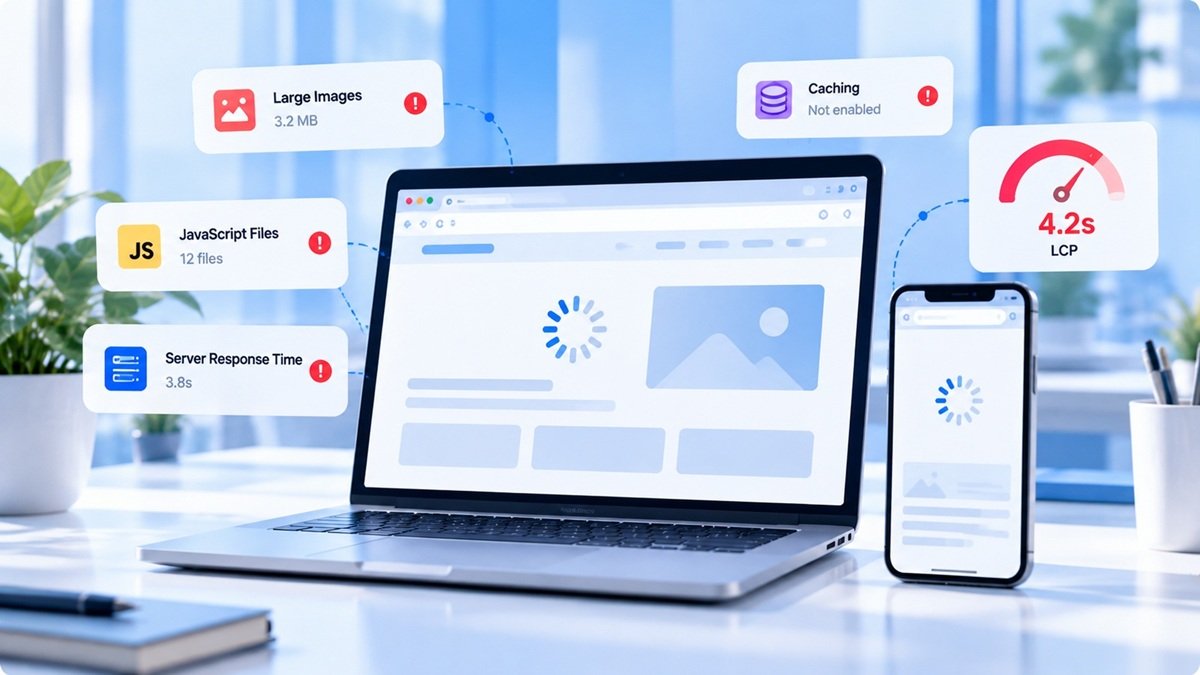
You open your website to check a page, but instead of seeing your homepage, the browser keeps loading.
You wait a few seconds. Nothing happens.
Then you refresh the page. This time, you see a message saying “This site can’t be reached” or “ERR_CONNECTION_TIMED_OUT.”
You try again from your phone, and the website works—or perhaps it doesn’t.
If you’re a website owner, developer, or SEO professional, this is more than an inconvenience. Your visitors may be unable to access your services, submit enquiries, or read your content.
The first thing to understand is that a website not loading doesn’t always mean the same problem is responsible. You need to identify where the failure occurs before attempting a fix.
1. Is the website down for everyone or just you?
Start by opening the website in a private browser window and testing it from another network, such as mobile data.
If the website works on mobile data but not on your office Wi-Fi, the problem may involve your network, DNS cache, firewall, or internet provider.
If it fails across multiple devices and networks, investigate the website’s server and DNS configuration.
Don’t immediately change DNS records or reinstall your website. First, establish whether the problem is local or affects the website itself.
2. Check the error message
Different errors point towards different causes.
-
Connection timed out: The server or network may not be responding in time.
-
DNS error: The domain name may not be resolving correctly.
-
500 Internal Server Error: The server encountered an unexpected problem.
-
502 Bad Gateway: A gateway or proxy received an invalid response from an upstream server.
-
503 Service Unavailable: The service may be temporarily unavailable or overloaded.
-
404 Not Found: The requested URL or resource could not be found.
A 500 error, for example, can result from application exceptions, configuration problems, permissions, or resource limits. The error code alone doesn’t identify the exact cause.
3. Check your hosting account
If the entire website is unavailable, log in to your hosting dashboard.
Check whether:
-
Your hosting account is active.
-
Resource or bandwidth limits have been reached.
-
The server is experiencing problems.
-
Your domain points to the correct server.
-
The SSL certificate is valid.
-
Recent deployments or configuration changes caused the issue.
If the website stopped working immediately after a plugin update, deployment, or code change, investigate that change first.
4. Check DNS and SSL
A website may fail even when its application files are working correctly.
Check whether the domain resolves to the intended server and whether the HTTPS certificate is valid for the domain.
If you recently moved hosting providers or changed nameservers, allow for DNS propagation and verify the actual records rather than repeatedly changing them.
5. Look at server logs
When a website returns a server error, logs are often more useful than repeatedly refreshing the page.
Depending on your platform, check:
-
Web server error logs
-
PHP or application logs
-
Database connection errors
-
Reverse proxy logs
-
Hosting resource usage
-
Recent deployment logs
For WordPress, a plugin or theme can cause application errors. For a Laravel or Node.js application, check the relevant application logs and service status.
6. Don’t forget SEO consequences
If Googlebot cannot access important pages, crawling can be affected. Google recommends checking Search Console’s Crawl Stats and URL Inspection tools when investigating crawling availability issues.
Once the website is available again, inspect important URLs and confirm they return the expected response.
A temporary outage doesn’t automatically mean your rankings will disappear, but persistent availability problems deserve prompt attention.
Website troubleshooting checklist
-
Test from another device and network.
-
Record the exact browser error.
-
Check DNS resolution.
-
Check hosting status and resource limits.
-
Validate the SSL certificate.
-
Review server and application logs.
-
Undo or investigate recent changes if relevant.
-
Test important pages after recovery.
-
Check Google Search Console for crawling errors.
Final thoughts
When your website stops loading, avoid changing several settings at once. Identify the error, narrow down the cause, make a targeted fix, and test again.
SiteAuditScan can help you investigate website performance and technical issues, but a website that is completely unavailable may also require hosting or server-log access to diagnose properly.