Imagine opening your business website one morning and discovering that it redirects visitors to an unfamiliar website. Your homepage may have been replaced, your website may display a security warning, or customers may report receiving suspicious messages after visiting your pages.
For many website owners, this is how a security problem first becomes noticeable.
However, not every website attack is immediately visible. Some attackers operate quietly in the background, exploiting outdated software, weak passwords, vulnerable plugins, or incorrectly configured servers. A website can continue looking normal while sensitive information or important resources remain exposed.
Website security is no longer a concern limited to large companies and e-commerce platforms. Small businesses, blogs, portfolio websites, WordPress websites, and custom web applications can also become targets.
The good news is that many security problems can be reduced through regular maintenance, timely updates, secure configurations, and continuous monitoring.
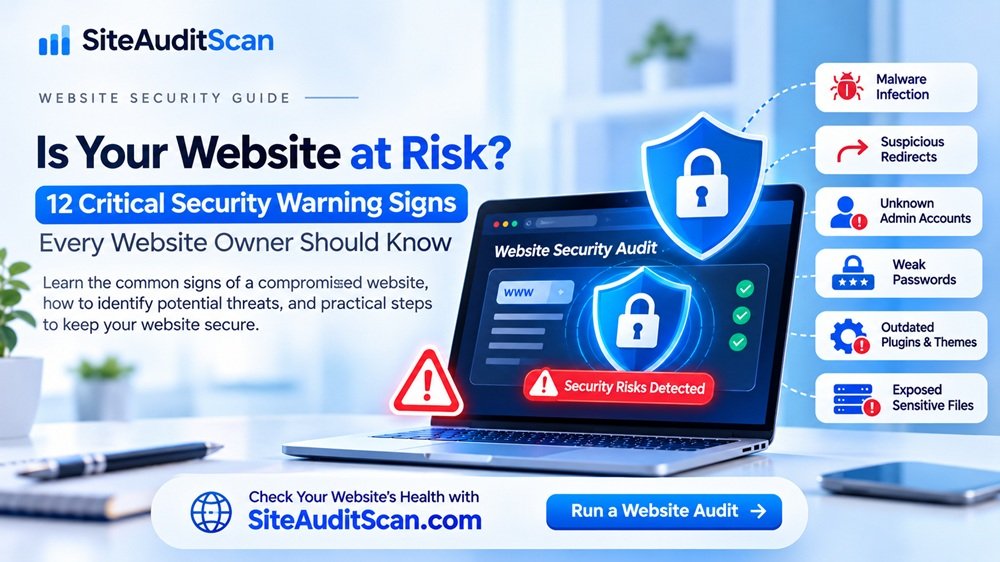
In this article, we will explore 12 important warning signs that may indicate your website has a security problem. We will also explain what causes these issues, how to investigate them, and what steps you can take to protect your website.
If you want to review your website’s overall technical health, you can also visit SiteAuditScan.com – Website Audit Tool and explore the available website audit checks.
Why Should You Pay Attention to Website Security Warning Signs?
A website security problem can affect more than your website files. It can impact your customers, business reputation, search engine visibility, and day-to-day operations.
A compromised website may be used to distribute malicious content, redirect visitors, send spam, expose private information, or attack other systems.
Ignoring early warning signs can make recovery more difficult and expensive.
Website owners should pay attention to security because:
- Visitors expect websites to protect their information.
- Search engines and browsers may warn users about dangerous websites.
- Malware can damage website files and databases.
- Security incidents can interrupt business operations.
- Exposed credentials can affect connected services and accounts.
- Recovering from a serious attack may require professional assistance.
Understanding the warning signs is the first step towards preventing avoidable damage.
12 Website Security Warning Signs You Should Never Ignore
1. Your Website Suddenly Redirects to Unknown Websites
One of the most noticeable signs of a compromised website is an unexpected redirect.
Visitors may try to open your homepage but end up on an unrelated page, suspicious advertisement, fake login screen, or unfamiliar domain.
Sometimes, the redirect only happens on mobile devices, for visitors coming from search engines, or under particular conditions. This can make the problem difficult for website administrators to notice.
Possible causes:
- Malicious JavaScript injected into website files.
- Compromised WordPress plugins or themes.
- Unauthorized changes to configuration files.
- Malicious database content.
- Compromised hosting or administrator accounts.
How to investigate and fix it:
- Check the website from different browsers and devices.
- Review recently modified website files.
- Inspect unfamiliar scripts and redirect rules.
- Review administrator accounts and recent login activity.
- Scan website files and databases using trusted security tools.
- Contact your hosting provider if you suspect a server-level compromise.
Do not assume the problem is fixed simply because the redirect temporarily disappears. Investigate the underlying cause.
2. Unknown Administrator Accounts Appear on Your Website
Finding an administrator account that nobody in your team recognizes is a serious warning sign.
Attackers may create additional accounts after gaining access to a website. These accounts can provide continued access even after the original vulnerability is fixed.
On WordPress websites, check the Users section regularly and investigate accounts with administrator privileges that were not created by authorized team members.
How to protect your website:
- Review all user accounts.
- Remove unauthorized accounts after preserving relevant evidence.
- Change passwords for affected accounts.
- Enable multi-factor authentication.
- Review login history and access logs where available.
- Check for suspicious changes to user roles.
Never delete an unfamiliar account without investigating whether it is connected to a legitimate developer, hosting provider, or integration.
3. Your Website Loads Slowly for No Clear Reason
A sudden decrease in website performance may indicate a technical or security issue.
Slow loading does not automatically mean your website has been hacked. It may be caused by large images, inefficient scripts, server resource limits, database problems, or traffic increases.
However, unexpected background processes, malicious scripts, or unauthorized resource usage can also affect performance.
What to check:
- Recent website and plugin changes.
- Server CPU and memory usage.
- Unusual traffic patterns.
- Database performance.
- Large or unfamiliar files.
- Suspicious scheduled tasks and background processes.
You can begin by reviewing your website’s technical performance using SiteAuditScan.com. Its available audit checks can help you identify website issues that need further investigation.
Remember that a performance audit alone cannot confirm whether malware is present. If you suspect malicious activity, use appropriate security scanning and server investigation methods as well.
4. Your Website Displays Browser Security Warnings
Have you ever opened a website and seen a warning such as “Deceptive site ahead” or a browser message indicating that the connection is not secure?
These warnings should never be ignored.
They may appear because of an invalid SSL certificate, malicious website content, phishing activity, or a security classification issued by a browser or search engine.
How to fix the problem:
- Check whether your SSL certificate is valid and correctly configured.
- Investigate browser security notifications.
- Scan for malware and suspicious content.
- Review unexpected website redirects.
- Check Google Search Console’s Security Issues report.
- Request a review after fixing confirmed problems.
An SSL certificate warning and a malware warning are different problems. Identify the actual cause before deciding on a fix.
5. Your Website Contains Unexpected Pages or Spam Content
Sometimes attackers do not modify your homepage. Instead, they create hidden pages containing spam, advertisements, suspicious links, or misleading content.
These pages may appear in search results even when you cannot easily find them through your website navigation.
This can affect your website’s reputation and organic search visibility.
How to investigate:
- Review recently published pages and posts.
- Check your sitemap for unfamiliar URLs.
- Inspect Google Search Console indexing reports.
- Review CMS user activity.
- Check website files and database records.
- Investigate unfamiliar plugins and themes.
If you find unauthorized content, remove it only after identifying how it was created. Otherwise, the attacker may simply generate it again.
6. Your Website Software Is Outdated
Outdated software is one of the most common sources of website security risk.
Your website may depend on several components, including:
- WordPress or another CMS.
- PHP or another server-side runtime.
- Themes and plugins.
- JavaScript libraries.
- Backend frameworks.
- Database software.
- Web server components.
If one of these components contains a known vulnerability, attackers may attempt to exploit it.
How to reduce the risk:
- Maintain an inventory of website software.
- Check whether each component is supported.
- Apply security updates promptly.
- Remove unused plugins and libraries.
- Review security advisories for important dependencies.
- Test major updates before deploying them to production.
For WordPress websites, keeping the core software, plugins, and themes updated is essential.
Do not forget PHP and server software. Updating WordPress alone does not guarantee that the underlying hosting environment is secure.
7. Your Website Uses Weak Login Credentials
A weak password can give attackers an easy opportunity to access your website.
Automated tools can repeatedly attempt common passwords or reuse credentials exposed in unrelated data breaches.
The risk increases when multiple people share the same administrator account.
Recommended security practices:
- Use long, unique passwords.
- Enable multi-factor authentication.
- Avoid predictable usernames and passwords.
- Limit repeated login attempts.
- Remove unused administrator accounts.
- Use individual accounts for developers and website managers.
- Change credentials immediately if exposure is suspected.
A strong password policy should apply to hosting accounts, FTP/SFTP accounts, database accounts, CMS administrators, and connected services.
8. Suspicious Files Appear in Your Website Directory
Unexpected files can indicate unauthorized access or malicious activity.
For example, a website may contain unfamiliar PHP files, modified scripts, suspicious archives, or unexpected files in upload directories.
Not every unfamiliar file is malicious. CMS platforms and plugins create temporary files, caches, and other supporting resources. The important thing is to investigate files that cannot be explained.
How to investigate:
- Compare current files against a clean version of the CMS or application.
- Review file modification dates.
- Check unfamiliar scripts and executable files.
- Inspect upload directories.
- Review server logs for related activity.
- Ask your hosting provider to investigate suspicious processes.
Do not delete system or application files simply because their names look unfamiliar. Confirm their purpose first.
9. Your Website Sends Emails You Did Not Authorize
Unexpected outgoing emails can indicate that a website account, contact form, email service, or server process has been abused.
You may notice:
- Unusual email volumes.
- Spam complaints.
- Your domain appearing on email blocklists.
- Unknown SMTP activity.
- Hosting provider warnings about suspicious email traffic.
How to fix it:
- Review SMTP and email service logs.
- Check contact forms for abuse.
- Rotate exposed SMTP credentials.
- Review administrator accounts and installed plugins.
- Investigate suspicious scripts.
- Configure appropriate SPF, DKIM, and DMARC records.
- Ask your hosting provider to investigate unusual outbound activity.
Email authentication records help protect your domain’s email reputation, but they do not remove malware or secure a compromised website by themselves.
10. Your Website Exposes Sensitive Information
Configuration files, debug logs, backup archives, and database exports can contain information that should never be publicly accessible.
Examples include:
- Database usernames and passwords.
- API keys and secret tokens.
- SMTP credentials.
- Internal error messages.
- Application configuration details.
- Database backup files.
For example, a Laravel application must protect its .env file and avoid exposing debug information in a production environment.
How to protect sensitive information:
- Keep configuration files outside public directories where possible.
- Restrict access to private files.
- Disable detailed debug output in production.
- Remove unnecessary public backups.
- Store secrets securely.
- Rotate credentials if exposure is suspected.
If a credential has been publicly exposed, simply hiding the file is not enough. Replace the exposed credential as well.
11. Your Website Has Unexpected Traffic Spikes
A sudden increase in website traffic can be positive, but not every traffic spike represents genuine visitors.
Unusual traffic may be associated with automated bots, scraping, brute-force login attempts, vulnerability scanning, or denial-of-service activity.
What you should check:
- Server access logs.
- Traffic sources and request patterns.
- Repeated requests to the same endpoints.
- Unusual login attempts.
- Requests from suspicious IP addresses.
- Server resource usage.
Use appropriate rate limiting, web application firewall protection, and hosting-level controls where needed.
Avoid blocking all unusual traffic without investigation. Search engine crawlers, monitoring services, and legitimate integrations can also generate automated requests.
12. Your Website Has No Reliable Backup or Recovery Plan
A website may appear secure, but what happens if its files are deleted, its database becomes corrupted, or an attacker damages the application?
Without a reliable backup, recovery can become difficult.
Backups are not a replacement for security, but they are an essential part of protecting your website and business.
A good backup strategy should include:
- Automatic website file backups.
- Database backups.
- Copies stored separately from the production server.
- Access protection for backup files.
- Multiple backup versions.
- Regular restoration testing.
- A documented recovery process.
Make sure you know how to restore your website before an emergency occurs.
How to Protect Your Website Before a Security Incident Happens
Identifying security warning signs is important, but preventing problems is even better.
Here are practical steps every website owner should include in a website maintenance routine.
Keep All Software Updated
Install security updates for your CMS, plugins, themes, frameworks, libraries, and server software. Remove components that are no longer needed.
Use Secure Hosting
Choose a hosting provider that maintains its infrastructure, provides appropriate account isolation, supports secure connections, and offers reliable backup and recovery options.
Protect Administrator Access
Use strong passwords, multi-factor authentication, individual accounts, and appropriate user permissions.
Configure HTTPS Correctly
Maintain a valid SSL/TLS certificate and ensure that website resources load securely.
Review Your Website Regularly
Check for suspicious changes, unexpected files, unusual accounts, software vulnerabilities, and configuration problems.
Secure Forms and APIs
Validate user input, apply server-side authorization, and protect file upload functionality.
Maintain a Recovery Plan
Keep clean backups and make sure you can restore the website if an incident occurs.
How to Review Your Website’s Health with SiteAuditScan
Many website owners do not know where to begin when checking their website. They may understand that something is wrong but struggle to identify which areas require attention.
A structured website audit can make this process easier by bringing relevant findings together.
SiteAuditScan.com helps website owners review their websites using the audit checks currently available on the platform.
You can use the audit results as a starting point to:
- Review available website health and technical checks.
- Identify areas that may require improvement.
- Understand which issues need further investigation.
- Prioritize website maintenance tasks.
- Recheck your website after making improvements.
For example, if your website has performance problems or technical issues, an audit can help highlight areas that deserve attention.
However, website security requires more than an automated website audit. A scan cannot guarantee that your website is free from malware or every possible vulnerability. Some issues require authenticated testing, server log analysis, manual code review, or professional penetration testing.
Use audit findings alongside regular security maintenance and appropriate security tools.
Start reviewing your website today:
Visit https://siteauditscan.com/ and explore the available website audit checks.