
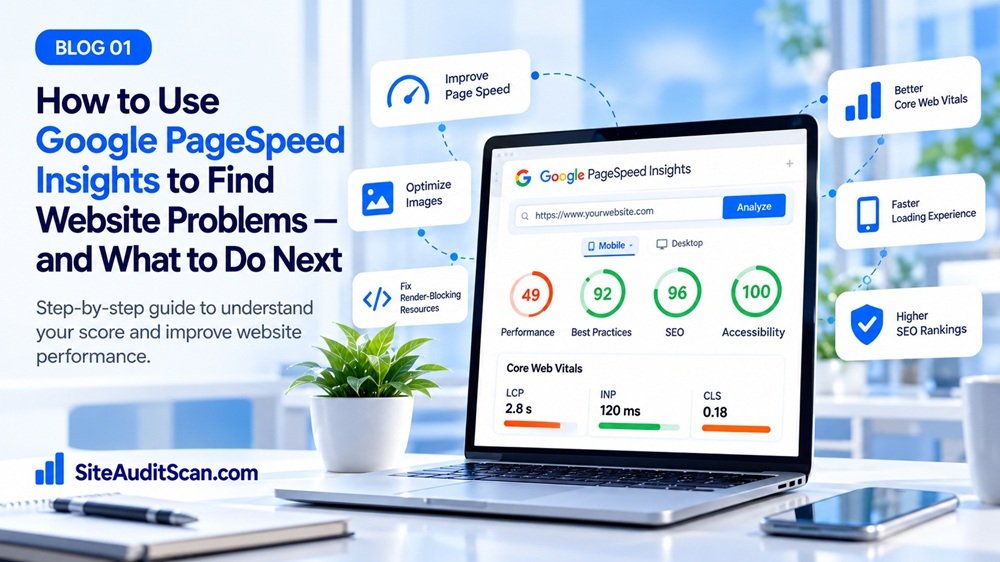
A website can look polished on your own laptop and still feel slow to someone using a phone or a weaker connection. A large hero image may delay the main content, JavaScript may prevent a button from responding, or the layout may shift just as a visitor tries to tap a link. These problems are easy to miss if you only open the website yourself.
Google PageSpeed Insights gives you a repeatable way to investigate page performance. It reports measurements and diagnostics for mobile and desktop, helping you move from “the site feels slow” to a list of issues worth checking. You can combine that information with a broader review using SiteAuditScan.com, then decide which fixes matter most for your website and visitors.
What PageSpeed Insights tells you
PageSpeed Insights can show lab data from Lighthouse and, when enough data is available, field data based on real Chrome users. Lab data helps you investigate problems in a controlled test. Field data reflects real visitor experiences over a recent period. They are complementary, not interchangeable. A new or low-traffic page may not have enough field data; that does not automatically mean it is fast or slow.
Test the exact URL you want to improve. The homepage may use different images, scripts, and templates than a product page, blog post, contact form, or checkout. Test important page types separately.
Understand the metrics, not just the score
The performance score is a useful summary, but it is not the complete visitor experience. Look at the measurements and diagnostics below it. Pay particular attention to Core Web Vitals:
– Largest Contentful Paint (LCP) describes when the main visible content has rendered.
– Interaction to Next Paint (INP) evaluates responsiveness across user interactions.
– Cumulative Layout Shift (CLS) measures unexpected visual movement.
As general reference thresholds, a good experience is associated with LCP of 2.5 seconds or less, INP of 200 milliseconds or less, and CLS of 0.1 or less. Real-user assessments use the 75th percentile of eligible visits. Check Google’s current documentation when making technical decisions.
Turn warnings into investigations
A diagnostic is a clue, not an instruction to blindly change code. Ask what causes it, which users it affects, and whether the fix is likely to improve the experience.
If images are oversized, compare their file dimensions with the size displayed on screen. Serve responsive images and use a suitable modern format where supported. Do not automatically lazy-load the main hero image if it is needed immediately; delaying the primary visible image can worsen LCP. Lazy loading is usually more appropriate for below-the-fold images.
If render-blocking resources appear, inspect CSS and JavaScript needed before the browser can show the page. Remove unused code where safe, defer non-critical scripts, and avoid loading every plugin asset on every page. Do not defer a script without checking whether the first visible interface depends on it.
If JavaScript execution is expensive, review sliders, chat widgets, animation libraries, analytics tags, and large application bundles. Consider loading non-essential features later or splitting code into smaller pieces. If the layout shifts, reserve space for images, embeds, ads, and dynamically inserted components. Set image dimensions or CSS aspect ratios and avoid injecting content above existing text without reserving space.
Use SiteAuditScan.com as a complementary step
PageSpeed Insights is useful for performance metrics and Lighthouse diagnostics. A broader audit can help you consider other website issues surfaced by the checks available in its workflow. Use SiteAuditScan.com as another checkpoint rather than assuming both tools run identical tests.
A practical workflow:
1. Test the important URL in PageSpeed Insights on mobile and desktop.
2. Record the main metrics and the most significant warnings.
3. Run a check using SiteAuditScan.com and review the findings available in its report.
4. Confirm each issue before changing production code.
5. Fix one high-impact issue or related group of issues.
6. Test the same URL again and record the result.
Start at https://siteauditscan.com/. When writing about the tool, describe what readers can actually do in the current product and avoid claiming that an audit automatically fixes every issue.
Prioritize work by impact
Start with problems affecting the main content, key actions, or many important pages. A slow hero image, a server response delay, or a script that blocks interaction may matter more than a minor warning on a low-value page. If several pages share the same template, a template-level fix may help more visitors than a one-off adjustment.
Make changes in a staging environment when possible. Change one group of related things at a time, then test. If you simultaneously change image delivery, caching, JavaScript, and hosting settings, you may not know which change helped or caused a regression.
Mistakes to avoid
Do not chase a score of 100 while ignoring the real user journey. Do not test only the homepage. Do not install multiple optimization plugins without checking whether they overlap. A green lab score does not guarantee excellent real-world performance, and a lower score does not identify the best fix by itself. Also, do not expect a performance change to produce an immediate ranking increase; search visibility depends on many factors.
Checklist
– Test important URLs separately.
– Review mobile and desktop.
– Inspect metrics as well as the score.
– Identify the main visible content and how it loads.
– Check images, fonts, CSS, JavaScript, and third-party scripts.
– Compare findings with the audit checks available at SiteAuditScan.com.
– Verify the cause before making changes.
– Re-test after deployment.
Conclusion
A useful PageSpeed Insights test should leave you with a diagnosis, not just a number. Test real user journeys, understand the metrics, verify warnings, and prioritize changes that improve the experience. Combine performance diagnostics with the wider checks available through SiteAuditScan.com, then measure again after making changes. A consistent process is more useful than repeatedly checking a score without acting on it.