
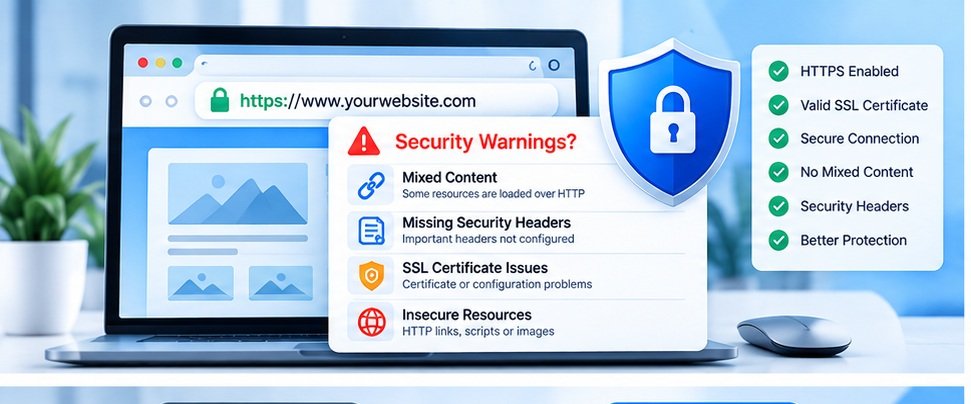
You finally moved your website from HTTP to HTTPS.
The padlock appears in the browser.
The SSL certificate is active.
So you assume the security part is finished.
Then you notice a browser warning, a security-related issue in an audit, or a page that doesn’t behave the way you expected.
This can be confusing.
If the website has HTTPS, why would there still be security problems?
The answer is that HTTPS is an important part of website security, but it is not the entire security picture.
What HTTPS Actually Does
HTTPS encrypts communication between a visitor’s browser and your website.
This is particularly important when a visitor submits information through a form, logs into an account, or sends other data to your website.
But HTTPS does not automatically protect every part of a website.
You can still have problems with:
- Mixed content
- Weak security headers
- Exposed files
- Incorrect redirects
- Third-party resources
- Outdated software
- Poor server configuration
So seeing HTTPS in the browser should be treated as a starting point, not the end of a security review.
What Is Mixed Content?
One common problem occurs when the main website uses HTTPS but some resources are still loaded using HTTP.
For example:
https://example.com
might load an image from:
http://example.com/image.jpg
The main page is secure, but the resource is being requested through an insecure connection.
Browsers may block certain resources or display warnings depending on the situation.
This can happen after migrating an older website from HTTP to HTTPS.
Images, JavaScript files, CSS files, fonts, videos, and external resources should all be reviewed.
Old URLs Can Survive for Years
Website migrations can leave old HTTP references behind.
This is particularly common on older WordPress websites.
A database may contain old URLs.
A theme may contain an HTTP reference.
A plugin may generate an HTTP resource.
A hard-coded image URL may still use the old protocol.
That means simply installing an SSL certificate doesn’t necessarily replace every old reference.
A proper review should look at the actual resources loaded by the page.
Security Headers Are Another Layer
Security headers allow a website to communicate additional security-related instructions to browsers.
Depending on the website, useful headers can include:
- Content-Security-Policy
- Strict-Transport-Security
- X-Content-Type-Options
- Referrer-Policy
- Permissions-Policy
Not every website needs exactly the same configuration.
For example, a website with a complex application and many third-party services may need a carefully planned Content Security Policy.
The important point is that HTTPS and security headers solve different problems.
What About Sensitive Files?
Another issue that is easy to overlook is publicly accessible files.
A website may accidentally expose:
- Backup files
- Configuration files
- Old archives
- Debug files
- Temporary files
- Directory listings
- Development files
A normal visitor may never notice them because they don’t appear in the website’s navigation.
But if a sensitive file is publicly accessible, that can create an unnecessary security risk.
This is particularly important after website migrations or development work.
Third-Party Scripts Need Attention Too
Many websites use external services.
Examples include:
- Analytics
- Chat systems
- Advertising
- Social media widgets
- Payment systems
- Marketing tools
- Embedded videos
Third-party scripts are not automatically unsafe.
But every external dependency should be understood.
Ask:
Do we still need this script?
Where is it loaded from?
What information does it receive?
Is it still maintained?
A website can accumulate third-party scripts over several years without anyone reviewing them.
What Should You Check?
If your website has HTTPS but you’re still seeing security-related warnings, start with:
1. Check for mixed content
Look for HTTP resources on HTTPS pages.
2. Check redirects
Make sure HTTP requests are correctly redirected to HTTPS where appropriate.
3. Review security headers
Check whether important headers are configured appropriately.
4. Look for exposed files
Review publicly accessible directories and files.
5. Review third-party resources
Remove services that are no longer required.
6. Keep software updated
CMS platforms, plugins, themes, frameworks, and server software should be maintained.
A Website Audit Can Help Find the Easy-to-Miss Problems
This is one situation where an automated website audit can be useful as a first step.
For example, you can run your website through SiteAuditScan and review the security-related findings alongside the other website checks.
The purpose isn’t to assume that an automated scan can replace a professional security assessment.
Instead, it can help identify common issues that deserve attention.
Final Thoughts
HTTPS is essential for modern websites, but it shouldn’t be confused with complete website security.
If your website has HTTPS and you’re still seeing warnings, don’t immediately assume that the SSL certificate is broken.
Look beyond the padlock.
Check mixed content.
Review security headers.
Look for exposed files.
Review third-party resources.
Keep your website software updated.
A secure website is built from multiple layers rather than one setting.
The padlock is a good beginning.
It just isn’t the whole story.