
Have you ever wondered how Google discovers pages on your website? How does it know which sections to crawl, which URLs to avoid, and where to find your sitemap?
One important file involved in this process is robots.txt.
Although it is a small text file, robots.txt plays an important role in technical SEO and website crawling. It provides instructions to compatible automated crawlers about which parts of your website they are requested to access or avoid.
For example, you may want search engines to crawl your homepage, service pages, blog articles, and product pages while avoiding unnecessary administrative or internal website sections.
This is where robots.txt becomes useful.
However, configuring this file incorrectly can create serious SEO problems. A single overly restrictive rule could prevent search engines from crawling important pages, while incorrect assumptions about its security capabilities could expose sensitive information.
Whether you manage a WordPress website, an e-commerce store, a business website, or a custom web application, understanding robots.txt is an important part of website maintenance.
In this guide, we will explain what robots.txt is, how it works, why it matters for SEO, how to create it, and how to avoid common configuration mistakes.
If you want to review your website’s technical health, you can also visit SiteAuditScan.com and explore the available website audit checks.
1. What Is Robots.txt?
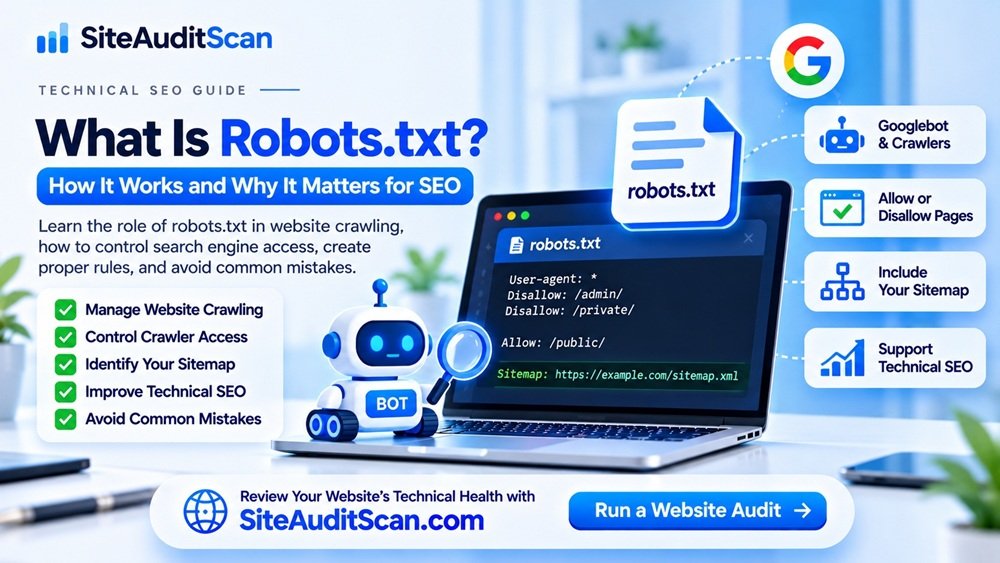
robots.txt is a plain-text file that website owners use to provide crawling instructions to automated web crawlers.
It is based on the Robots Exclusion Protocol, a standard used by many search engine crawlers.
The file is usually placed in the root directory of a website.
For example:
https://example.com/robots.txt
When a compatible crawler visits your website, it can request this file and check the instructions before crawling URLs.
A robots.txt file can contain instructions to:
- Allow crawlers to access selected website sections.
- Ask crawlers to avoid specific directories or URL patterns.
- Provide different instructions for different crawler user agents.
- Include the location of an XML sitemap.
One important distinction: robots.txt controls crawling instructions, not guaranteed search engine indexing. It also does not provide password protection or secure access control.
2. Why Is Robots.txt Important for Website SEO?
Search engines discover website content through links, sitemaps, and other discovery systems. They then crawl pages to understand their content and determine whether they may be suitable for indexing.
For websites with many pages, managing crawler access can be important.
A properly configured robots.txt file can help communicate which sections of your website should or should not be crawled.
Here are some reasons why website owners use robots.txt.
Manage Search Engine Crawling
You may have website sections that are not useful for search engine crawlers, such as internal search result pages or certain administrative paths.
Robots.txt can provide instructions to avoid crawling those locations.
Reduce Unnecessary Crawling
Large websites may contain thousands or millions of URLs.
Avoiding unnecessary crawling of certain URL patterns can help search engines focus on more useful parts of the website, although it does not guarantee that a specific number of crawl requests will be saved.
Identify Your XML Sitemap
You can include your sitemap location in robots.txt.
This gives compatible crawlers another way to discover your sitemap.
Provide Crawler-Specific Instructions
Different automated crawlers may use different user-agent names.
Robots.txt allows website owners to create rules for selected crawlers.
Support Technical SEO Management
Robots.txt is one part of a broader technical SEO strategy that also includes sitemaps, canonical URLs, internal linking, redirects, and indexability controls.
3. How Does Robots.txt Work?
The process is relatively simple.
- A search engine crawler attempts to access your website.
- The crawler requests the website’s robots.txt file.
- It reads the instructions relevant to its user agent.
- It uses those instructions when deciding which URLs it may crawl.
- It continues discovering and processing accessible website content according to its own crawling systems.
For example, suppose your website contains:
- Homepage.
- About page.
- Services.
- Blog.
- Admin dashboard.
- Internal search pages.
You may want search engines to crawl the public pages while avoiding selected internal sections.
A robots.txt file can provide instructions for this purpose.
However, robots.txt is not a guaranteed enforcement mechanism. Well-behaved crawlers generally follow the protocol, but malicious bots may ignore it.
4. Understanding the Main Robots.txt Directives
Before creating your robots.txt file, you should understand the most commonly used directives.
User-agent
The User-agent directive identifies the crawler to which a group of rules applies.
Example:
User-agent: *The asterisk means that the rules apply to all crawlers that follow the protocol.
You can also specify a particular crawler:
User-agent: GooglebotThis identifies Google’s main web crawler.
Disallow
The Disallow directive tells a compatible crawler not to crawl a specified URL path.
Example:
User-agent: *
Disallow: /admin/
This requests that compatible crawlers avoid crawling URLs under the /admin/ path.
Allow
The Allow directive can be used to permit access to a specific path within a disallowed area, where the crawler supports it.
Example:
User-agent: *
Disallow: /private/
Allow: /private/public-guide.html
This allows the specified guide while requesting that crawlers avoid other matching paths under /private/.
Sitemap
The Sitemap directive identifies the location of an XML sitemap.
Example:
Sitemap: https://example.com/sitemap_index.xmlThis helps crawlers discover the sitemap location.
Crawl-delay
Some crawlers support the Crawl-delay directive, which requests a delay between crawling requests.
Example:
User-agent: SomeBot
Crawl-delay: 10
However, support varies between crawlers. Google does not support Crawl-delay in robots.txt. Use the relevant search engine’s documented tools for managing crawl activity.
5. Example of a Basic Robots.txt File
For many websites, a simple robots.txt file is sufficient.
Here is an example:
User-agent: *
Disallow:

Sitemap: https://example.com/sitemap_index.xml
This example does not disallow any paths and includes the sitemap location.
For a WordPress website, a more restrictive example might look like this:
User-agent: *

Disallow: /wp-admin/

Allow: /wp-admin/admin-ajax.php

Sitemap: https://example.com/sitemap_index.xml
This requests that crawlers avoid the WordPress administration area while allowing access to the AJAX endpoint.
Replace the example domain and sitemap URL with your actual website details.
Do not copy restrictive rules without understanding how they affect your website.
6. How to Create a Robots.txt File for Your Website
Creating a robots.txt file is straightforward.
You do not need an advanced development environment to create one.
Step 1: Open a Text Editor
Open a text editor such as Notepad or Visual Studio Code.
Create a new plain-text file.
Step 2: Add Your Crawling Rules
Add the instructions you want compatible crawlers to follow.
For example:
User-agent: *

Disallow: /admin/

Sitemap: https://example.com/sitemap.xml
Only include paths that you genuinely want crawlers to avoid.
Step 3: Save the File
Save the file with the exact name:
robots.txt
Make sure the extension is .txt and not .txt.txt.
Step 4: Upload It to Your Website Root Directory
Upload the file to your website’s root directory.
On many hosting platforms, this is the public_html directory.
For example:
public_html/
    robots.txt
    index.php
    wp-config.php
    wp-content/
Your final robots.txt URL should be:
https://example.com/robots.txt
Step 5: Test the File
Open the URL in a browser and confirm that it loads correctly.
Check that:
- The file returns a successful HTTP response.
- The content is plain text.
- The rules are correctly formatted.
- The sitemap URL is accurate.
- Important public pages are not accidentally blocked.
You can also use Google Search Console’s available robots.txt reporting and testing features where supported.
7. How to Configure Robots.txt in WordPress
WordPress websites can have a virtual robots.txt file generated automatically when a physical file is not present.
You can also manage robots.txt through your hosting environment or a suitable WordPress SEO plugin.
Method 1: Using Your Hosting File Manager
- Log in to your hosting control panel.
- Open File Manager.
- Navigate to the website’s document root, commonly
public_html. - Check whether a robots.txt file already exists.
- Create or edit the file.
- Add the required crawling instructions.
- Save the changes.
- Visit
https://yourdomain.com/robots.txtto verify it.
Before replacing an existing file, take a copy of its current contents.
Method 2: Using an SEO Plugin
Some WordPress SEO plugins provide options for editing robots.txt.
Depending on the plugin, you may find this functionality under its tools or file editor section.
Always check the final public robots.txt URL after saving changes.
Method 3: Using a Physical Robots.txt File
You can create the file manually and upload it to the WordPress root directory.
A physical robots.txt file generally takes precedence over WordPress’s virtual robots.txt response.
Avoid managing conflicting rules in multiple places.
8. Common Robots.txt Mistakes That Can Damage Your SEO
Robots.txt is simple, but mistakes can cause crawling problems.
Here are some common errors website owners should avoid.
Mistake 1: Blocking the Entire Website
One of the most serious mistakes is accidentally blocking all crawlers.
Example:
User-agent: *
Disallow: /
This requests that all matching crawlers avoid crawling every URL on the website.
If you use this rule on a public production website, search engines may be unable to crawl your pages.
Always check this rule before publishing your robots.txt file.
Mistake 2: Blocking Important Website Pages
Some website owners accidentally block important directories containing blog posts, products, or other public content.
For example:
User-agent: *
Disallow: /blog/
If your important articles are located under /blog/, this rule can prevent compliant crawlers from accessing them.
Review your website URL structure before adding Disallow rules.
Mistake 3: Blocking CSS and JavaScript Files
Search engines may need access to CSS and JavaScript resources to understand how a page is rendered.
Blocking important resources can interfere with rendering and understanding the page.
Avoid blocking resource directories unless you have a clear technical reason.
Mistake 4: Using Robots.txt to Hide Private Information
This is a dangerous misunderstanding.
Robots.txt is publicly accessible, and its instructions are not a security barrier.
If you want to protect confidential information, use authentication, authorization, and proper server-side access restrictions.
Never rely on robots.txt to protect passwords, customer data, private documents, or administrative resources.
Mistake 5: Using Robots.txt to Remove Pages from Google
A URL blocked by robots.txt may still appear in search results if Google discovers it through external or internal links.
If you want a page removed from Google’s index, use appropriate methods such as:
- A
noindexdirective where crawling is allowed. - Authentication for genuinely private content.
- A suitable HTTP response, such as 404 or 410, when content has been permanently removed.
- Google’s removal tools for eligible temporary removal requests.
Important: If a crawler is blocked by robots.txt, it may not be able to see a noindex directive on that page. Do not block a page in robots.txt when you need Google to crawl it to process its noindex instruction.
Mistake 6: Incorrect Sitemap URL
A wrong sitemap path can make the sitemap declaration ineffective.
For example, if your real sitemap is:
https://example.com/sitemap_index.xml
But robots.txt contains:
Sitemap: https://example.com/sitemap.xml
You have provided the wrong location.
Always test the sitemap URL directly.
Mistake 7: Creating Different Conflicting Robots.txt Rules
Multiple user-agent groups and overlapping path rules can create unexpected behaviour.
Keep your configuration simple and review the complete file rather than evaluating one line in isolation.
9. Robots.txt vs Meta Robots vs X-Robots-Tag
These three mechanisms are often confused, but they have different purposes.
| Method | Purpose |
|---|---|
| robots.txt | Provides crawling instructions |
| Meta robots tag | Provides indexing and link-following instructions in an HTML page |
| X-Robots-Tag | Provides indexing instructions through HTTP response headers, including for non-HTML resources |
Robots.txt
Controls which URL paths compatible crawlers are requested to avoid crawling.
Meta Robots Tag
A page may contain:
<meta name="robots" content="noindex, follow">This tells compatible search engines not to index the page, while allowing them to follow its links, subject to their handling of the directive.
X-Robots-Tag
This is an HTTP response header that can be used to communicate indexing instructions.
For example:
X-Robots-Tag: noindexIt can be useful for PDFs, images, and other non-HTML resources.
The important distinction is that robots.txt controls crawling instructions, while meta robots and X-Robots-Tag communicate indexing instructions.
10. Should Every Website Have a Robots.txt File?
Most public websites benefit from having a properly configured robots.txt file, particularly when they have multiple sections, an XML sitemap, or specific crawling requirements.
However, the exact configuration depends on the website.
Small Business Websites
A simple robots.txt file that allows normal crawling and identifies the sitemap may be sufficient.
WordPress Websites
WordPress websites may use robots.txt to manage crawling of selected administrative or internal URL patterns.
E-commerce Websites
Online stores may need to review how search filters, sorting parameters, internal search pages, and product URLs are crawled.
Large Websites
Websites with thousands of URLs may benefit from carefully planned crawling instructions and sitemap management.
Development and Staging Websites
Staging websites should normally be protected using authentication or other access controls rather than relying only on robots.txt.
If a staging website is publicly accessible, a robots.txt Disallow rule is not sufficient to protect its content.
11. How to Check Whether Your Robots.txt File Is Working
After creating or modifying robots.txt, do not assume that the configuration is correct.
Follow these checks.
Step 1: Open the robots.txt URL
Visit:
https://example.com/robots.txt
Confirm that the file loads successfully.
Step 2: Review the Crawling Rules
Check each User-agent, Disallow, Allow, and Sitemap directive.
Make sure the rules match your intended configuration.
Step 3: Test Important URLs
Review whether important pages are unintentionally blocked.
Step 4: Check Google Search Console
Use the available Search Console reports and tools to investigate crawling issues.
Step 5: Check the Sitemap
Open the sitemap URL and confirm that it is accessible and valid.
Step 6: Monitor Crawling Activity
Review crawl statistics and indexing reports where available.
Remember that changing robots.txt does not guarantee an immediate change in crawling behaviour. Search engines may need to retrieve the updated file.
12. How SiteAuditScan Can Help You Review Your Website
A properly configured robots.txt file is only one part of maintaining a healthy website.
Your website also needs correct redirects, accessible pages, valid technical configurations, good performance, and well-maintained content.
With SiteAuditScan.com, website owners can explore the technical and website health checks currently available on the platform.
You can use the audit results as a starting point to:
- Review available website health checks.
- Identify potential technical issues.
- Find areas that may require improvement.
- Prioritize website maintenance tasks.
- Recheck your website after making changes.
For robots.txt-specific verification, also open the file directly and check the relevant crawler and Search Console reports. Do not assume that an automated website audit checks every robots.txt rule or guarantees that search engines will crawl your pages.
Want to review your website’s technical health?
Visit SiteAuditScan.com – Website Audit Tool and explore the available audit checks.