
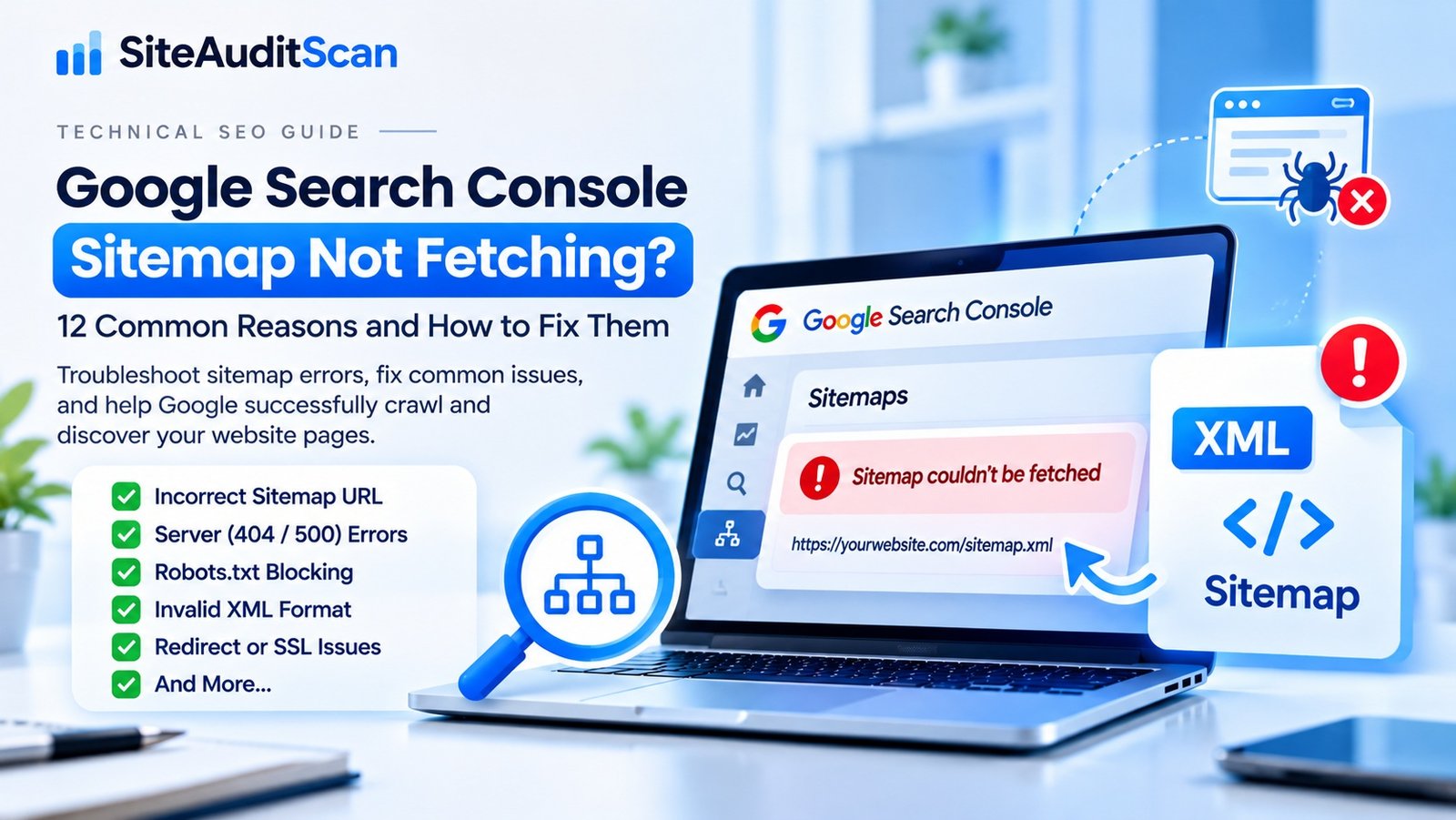
You have published new pages, updated your website content, created an XML sitemap, and submitted it to Google Search Console. Everything appears to be configured correctly, but the sitemap status still shows “Couldn’t fetch” or another processing error.
This can be frustrating, especially when your newly published pages are not appearing in Google search results.
A sitemap helps search engines discover important URLs on your website. It provides information about the pages, posts, and other content you want search engines to find. However, submitting a sitemap does not guarantee that Google will successfully fetch every URL or index every page.
Several technical issues can prevent Google from accessing or processing a sitemap. These include incorrect sitemap URLs, server errors, robots.txt restrictions, invalid XML formatting, redirect problems, SSL certificate issues, and hosting configuration errors.
The good news is that most sitemap fetching problems can be investigated systematically.
In this guide, we will explain 12 common reasons why Google Search Console may not fetch your sitemap and provide practical steps to troubleshoot and resolve each issue.
If you want to review your website’s technical health alongside sitemap troubleshooting, you can also visit SiteAuditScan.com and explore its available website audit checks.
What Is an XML Sitemap and Why Does It Matter?
An XML sitemap is a file that lists URLs from your website that you want search engines to discover.
For example, a WordPress website might have a sitemap at:
https://example.com/sitemap_index.xml
Or:
https://example.com/wp-sitemap.xml
A website using another CMS or a custom application may use a different sitemap URL.
A sitemap can help search engines discover:
- Homepage URLs.
- Important service pages.
- Blog posts and articles.
- Product pages.
- Category pages.
- Other indexable website content.
A sitemap may also contain information such as the last modification date of a page.
However, a sitemap is not a command that forces Google to crawl or index every listed URL. Google uses its own systems to decide whether and when to crawl and index content.
12 Reasons Why Google Search Console Is Not Fetching Your Sitemap
1. Incorrect Sitemap URL Submitted to Google Search Console
One of the simplest causes of a sitemap fetching error is submitting the wrong URL.
For example, your actual sitemap might be:
https://example.com/sitemap_index.xml
But you may have submitted:
https://example.com/sitemap.xml
If the submitted URL does not exist or points to the wrong location, Google may be unable to fetch it.
How to fix it:
- Open your website in a browser.
- Visit the sitemap URL directly.
- Confirm that the sitemap loads successfully.
- Check the exact URL displayed in the browser.
- Copy the correct URL.
- Submit the correct sitemap URL in Google Search Console.
Do not assume every website uses the same sitemap filename. Check the sitemap generated by your CMS or SEO plugin.
2. Sitemap Returns a 404 Not Found Error
A 404 error means the requested sitemap URL cannot be found.
This can happen after changing an SEO plugin, modifying permalink settings, migrating a website, changing a domain, or removing an existing sitemap configuration.
For example, your previous sitemap may have been available at:
https://example.com/sitemap_index.xml
But after a configuration change, the URL may no longer exist.
How to fix it:
- Confirm the sitemap URL in your browser.
- Check whether your SEO plugin is generating the sitemap.
- Review recent permalink or website configuration changes.
- Regenerate the sitemap if necessary.
- Check rewrite rules and server configuration.
- Submit the correct sitemap URL again.
For WordPress websites, check the sitemap settings of your SEO plugin or the default WordPress sitemap.
3. Server Returns a 500 Internal Server Error
A 500 Internal Server Error indicates that the server encountered a problem while processing the sitemap request.
Unlike a 404 error, the sitemap URL may exist, but the server cannot generate or return it successfully.
Possible causes include:
- PHP errors.
- Plugin conflicts.
- Server resource limitations.
- Incorrect rewrite rules.
- Database errors.
- Hosting configuration problems.
How to fix it:
- Open the sitemap URL directly.
- Check the HTTP response status.
- Review your hosting error logs.
- Check recent plugin and theme changes.
- Investigate PHP errors.
- Review server resource usage.
- Contact your hosting provider if the problem appears server-related.
If your sitemap is generated dynamically, also investigate whether the CMS or SEO plugin is failing while generating its XML output.
4. Robots.txt Is Blocking Google from Accessing the Sitemap
The robots.txt file provides crawling instructions to search engines.
An incorrectly configured robots.txt file can prevent Google from accessing important sitemap locations or website sections.
For example, a restrictive rule might block access to the directory containing your sitemap.
How to fix it:
- Open
https://example.com/robots.txt. - Review the crawling rules.
- Check whether the sitemap location is accessible.
- Confirm that important public website pages are not accidentally blocked.
- Update incorrect rules.
- Test the affected URLs again.
You can also declare the sitemap location inside robots.txt:
Sitemap: https://example.com/sitemap_index.xml
Use your actual sitemap URL.
Important: robots.txt controls crawling instructions. It is not a reliable way to remove a URL from Google’s index, and a robots.txt rule does not replace proper access control for private content.
5. Your Sitemap Contains Invalid XML
An XML sitemap must follow the expected XML sitemap structure.
If the file contains malformed XML, unsupported formatting, incorrect tags, or unexpected HTML output, search engines may have trouble processing it.
Common problems include:
- Missing closing tags.
- Incorrect XML declarations.
- Invalid characters.
- Incorrect URL formatting.
- HTML content appearing inside the XML file.
- Incorrect sitemap namespace definitions.
How to fix it:
- Open the sitemap in a browser.
- Check whether it displays as valid XML.
- Use an XML validation tool.
- Review the sitemap generator settings.
- Update the plugin or CMS responsible for generating it.
- Remove manually added invalid content.
A sitemap should return XML content rather than an HTML error page or a website maintenance message.
6. Sitemap URL Redirects to Another Location
Redirects can cause confusion when a sitemap has been moved or the domain configuration has changed.
For example, your sitemap may redirect from HTTP to HTTPS, from a non-www domain to a www domain, or from an old sitemap filename to a new one.
A normal permanent redirect may be handled successfully by Google, but long redirect chains, redirect loops, or redirects to the wrong destination can cause problems.
How to fix it:
- Check the sitemap URL’s HTTP response.
- Review the complete redirect path.
- Remove unnecessary redirect chains.
- Fix redirect loops.
- Ensure the final destination is the correct sitemap.
- Update Google Search Console with the preferred sitemap URL.
Your sitemap should resolve consistently to the correct canonical website domain.
7. Website SSL Certificate Problems
If your website uses HTTPS, the SSL/TLS certificate must be valid and correctly configured.
An expired certificate, hostname mismatch, or certificate-chain problem can prevent Google from accessing your sitemap securely.
How to fix it:
- Open your sitemap using HTTPS.
- Check whether the browser displays certificate warnings.
- Verify the certificate expiry date.
- Confirm that the certificate covers the correct domain.
- Renew or reinstall the certificate if required.
- Check the HTTPS configuration after making changes.
Also ensure that your sitemap does not contain outdated HTTP URLs when your preferred website version uses HTTPS.
8. Your Sitemap Contains URLs That Should Not Be Indexed
A sitemap should generally contain the canonical URLs of pages that you want search engines to discover and potentially index.
If your sitemap includes redirected URLs, blocked URLs, duplicate URLs, or pages marked with noindex, it can create unnecessary crawling and indexing confusion.
Examples include:
- URLs returning 404 errors.
- URLs redirected to another page.
- Duplicate URLs with tracking parameters.
- Pages blocked from crawling.
- Pages containing a
noindexdirective. - Non-canonical URLs.
How to fix it:
- Review the URLs listed in your sitemap.
- Remove URLs that should not be indexed.
- Include the preferred canonical URL.
- Fix broken internal links.
- Update sitemap generation settings.
- Regenerate the sitemap after corrections.
A clean sitemap helps search engines focus on the URLs you actually want them to discover.
9. Sitemap Is Too Large or Contains Too Many URLs
XML sitemaps have technical limits.
A single sitemap file can contain a maximum of 50,000 URLs and must not exceed 50 MB uncompressed. If your website contains more URLs, use multiple sitemap files and a sitemap index.
Large or inefficient sitemap configurations can also make maintenance and troubleshooting more difficult.
How to fix it:
- Split large sitemaps into smaller sitemap files.
- Use a sitemap index when multiple sitemap files are required.
- Remove unnecessary URLs.
- Avoid generating duplicate entries.
- Keep sitemap generation efficient.
- Check whether your CMS or SEO plugin supports sitemap indexing.
The goal is to provide a valid, manageable sitemap structure.
10. Hosting or Firewall Security Settings Are Blocking Googlebot
Sometimes the sitemap itself is correct, but your hosting environment blocks Google’s crawler.
This may happen because of:
- Web application firewall rules.
- Security plugin restrictions.
- IP blocking.
- Rate limiting.
- Bot protection settings.
- Server-level access restrictions.
If your hosting provider blocks automated requests, Google may be unable to retrieve your sitemap.
How to fix it:
- Review your hosting security settings.
- Check firewall and security plugin logs.
- Look for blocked requests to the sitemap URL.
- Investigate unusual rate-limiting rules.
- Contact your hosting provider if necessary.
- Verify that legitimate Googlebot requests are handled correctly.
Do not automatically allow every request claiming to be Googlebot. Verify crawler identity using Google’s documented methods before creating exceptions.
11. Sitemap Plugin or CMS Configuration Is Not Working Properly
Many websites use plugins or CMS features to generate sitemaps automatically.
In WordPress, sitemap generation may be provided by WordPress core or an SEO plugin.
Problems can occur when multiple plugins attempt to generate the same sitemap, plugin settings are changed, or a plugin conflict interrupts sitemap generation.
How to fix it:
- Identify which plugin or CMS feature generates your sitemap.
- Avoid unnecessary duplicate sitemap generators.
- Check plugin settings.
- Update the plugin.
- Investigate recent plugin conflicts.
- Clear website and server caches.
- Regenerate and test the sitemap.
If you recently changed SEO plugins, make sure Google Search Console is using the sitemap URL generated by the active configuration.
12. Sitemap Was Submitted but Google Has Not Processed It Yet
Not every sitemap submission results in immediate processing.
Google may take time to fetch and process a sitemap, especially when a website is new, has limited crawling history, or contains a large number of URLs.
A sitemap submission also does not guarantee that every URL will be indexed.
How to fix it:
- Confirm that the sitemap is accessible.
- Check the sitemap status in Google Search Console.
- Review the reported discovery and processing information.
- Check individual URLs using the URL Inspection tool.
- Improve internal linking to important pages.
- Ensure pages provide useful, original content.
- Allow time for Google to process the sitemap.
Avoid repeatedly submitting the same sitemap without addressing the underlying problem.
How to Troubleshoot a Sitemap Not Fetching Error Step by Step
If your sitemap is not fetching, follow this practical troubleshooting sequence.
Step 1: Open Your Sitemap Directly
Enter your sitemap URL into your browser.
For example:
https://example.com/sitemap_index.xml
Check whether the sitemap loads correctly and displays XML content.
If you see a 404 error, 500 error, access-denied message, or redirect to an unrelated page, investigate that problem first.
Step 2: Check the HTTP Status Code
The sitemap should normally be accessible through a successful HTTP response.
You can use browser developer tools or a command-line request to check the response.
Example using cURL:
curl -I https://example.com/sitemap_index.xmlLook for the HTTP status code and response headers.
A successful response is commonly 200 OK. If you receive another status, investigate the reason before resubmitting.
Step 3: Validate the XML Structure
Check whether the sitemap contains valid XML.
Look for:
- Correct XML structure.
- Valid URL entries.
- Proper closing tags.
- Correct sitemap namespaces.
- No unexpected HTML output.
If the XML is invalid, fix the sitemap generator or the source content.
Step 4: Review robots.txt
Visit:
https://example.com/robots.txt
Confirm that the sitemap location is correctly declared and that the relevant website URLs are not unintentionally blocked.
Step 5: Check Google Search Console
Open your verified website property in Google Search Console.
Navigate to the Sitemaps report and review:
- Submitted sitemap URL.
- Last read information.
- Current sitemap status.
- Discovered URL information.
- Reported errors.
If a particular sitemap URL is failing, investigate that exact URL rather than creating additional sitemap submissions without a reason.
Step 6: Inspect Important Website URLs
Use the URL Inspection tool to check important pages.
This can help you understand whether Google can access a particular page and whether it is eligible for indexing.
A successful sitemap fetch does not automatically mean that all listed URLs are indexed.
Step 7: Regenerate and Resubmit the Sitemap
After resolving the underlying problem:
- Regenerate the sitemap if necessary.
- Open it in a browser.
- Confirm that it returns valid XML.
- Check its HTTP response.
- Submit the correct URL in Google Search Console.
- Monitor the report for processing updates.
WordPress Sitemap Not Fetching: What Should You Check?
WordPress websites commonly use automatically generated XML sitemaps.
Depending on your setup, the sitemap may be available at:
https://example.com/wp-sitemap.xml
Or through an SEO plugin:
https://example.com/sitemap_index.xml
If your WordPress sitemap is not fetching, review these areas:
1. Check your SEO plugin
Confirm that sitemap functionality is enabled and that the correct sitemap URL is being generated.
2. Review permalink settings
Open WordPress Settings → Permalinks and review your configuration. If appropriate, save the settings again to refresh rewrite rules.
3. Check plugin conflicts
Multiple sitemap plugins or conflicting SEO configurations can cause unexpected results.
4. Clear caching
Clear WordPress caching, server caching, and CDN caching where applicable.
5. Review robots.txt
Make sure the sitemap location and important public pages are not accidentally blocked.
6. Check hosting logs
If the sitemap returns a server error, investigate PHP errors, server resources, and rewrite configuration.
7. Check your PHP and WordPress environment
Make sure your software is supported and updated, and investigate any compatibility issues affecting sitemap generation.
Always take a backup before making significant changes to your WordPress configuration.
How Sitemap Problems Can Affect SEO
A sitemap error does not automatically mean your website will lose rankings. However, persistent sitemap problems can make it more difficult for search engines to discover and process your content.
Potential effects include:
- New pages may take longer to be discovered.
- Important URLs may be missing from the submitted sitemap.
- Search engines may encounter unnecessary crawling errors.
- Duplicate or redirected URLs may create confusion.
- Website owners may overlook technical indexing problems.
Remember that Google can discover pages through internal links and other sources even without a sitemap.
A sitemap is a discovery aid, not a guarantee of crawling, indexing, or ranking.
How SiteAuditScan Can Help You Review Your Website
Sitemap problems are often connected to broader website issues, including incorrect redirects, technical configuration problems, server responses, and other website health concerns.
Before assuming that the sitemap generator is the only problem, it is useful to review the overall technical condition of your website.
With SiteAuditScan.com, you can explore the website audit checks currently available on the platform and use the findings to identify areas that may need attention.
You can use the results as a starting point to:
- Review website health and available technical checks.
- Identify potential configuration issues.
- Find areas that require further investigation.
- Prioritize website maintenance improvements.
- Recheck your website after making changes.
For sitemap-specific errors, you should also check the actual sitemap response, XML validity, robots.txt, and Google Search Console reports. Do not assume an automated website audit checks every sitemap processing issue.
Want to review your website’s technical health?
Visit SiteAuditScan.com – Check Your Website and explore the available audit checks.